

Quickstart: Report a simplified invoice to ZATCA
Learn how to onboard your device and report your invoices using the ZATCA Fatoora portal simulation or live environments.
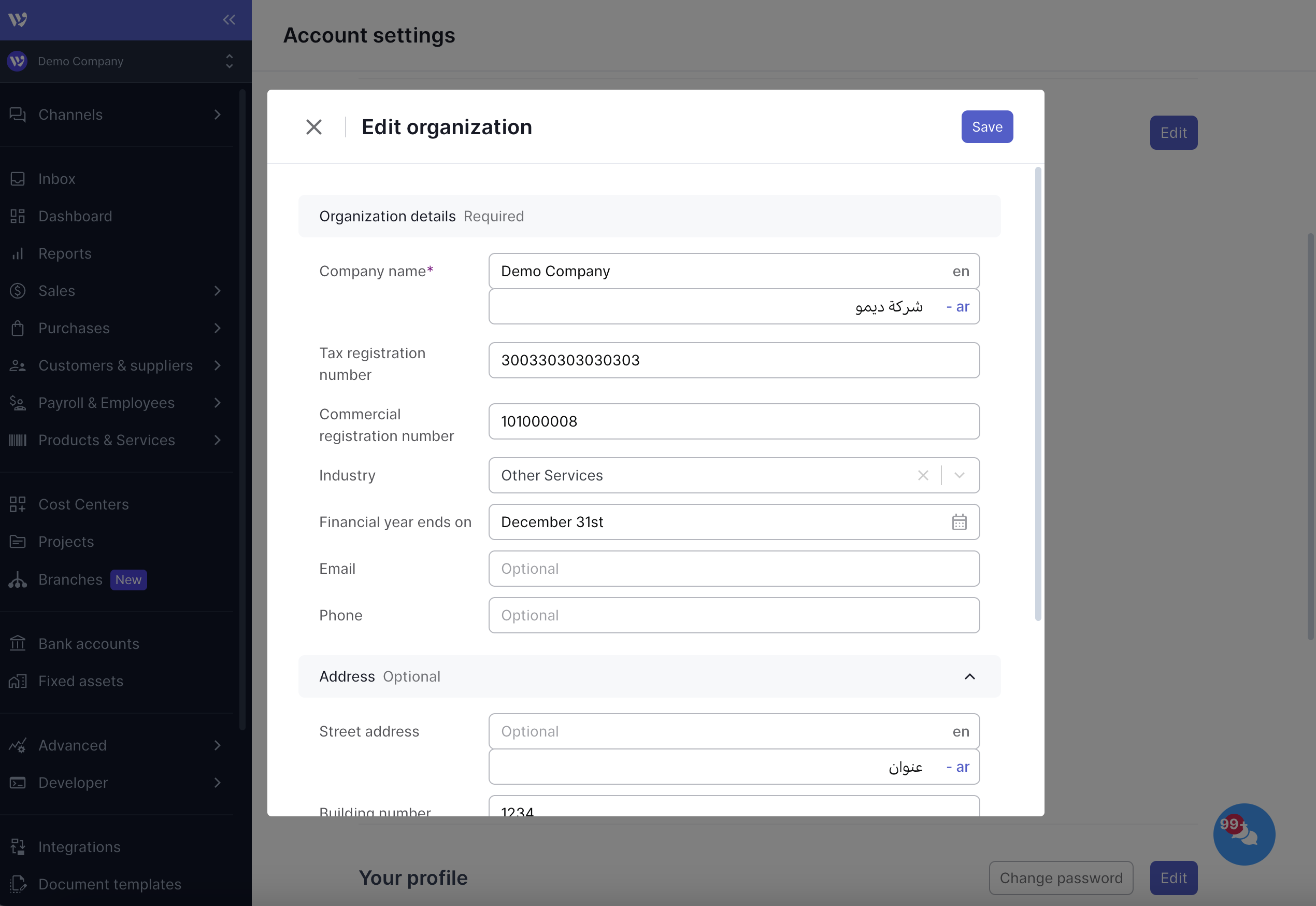
Step 1: Enter your organization details in Wafeq
Log into your Wafeq account and complete the following required fields:
- Company name
- Tax registration number
- Commercial registration number
- Full address:
- Street address
- Building number
- District
- City
- Country
- Postal code
Screenshot from Wafeq
Step 2: Accessing the ZATCA Fatoora Portal
Visit the ZATCA Fatoora Portal. The URL for the portal is: https://fatoora.zatca.gov.sa/
Once the website has loaded, log in with your credentials.

Step 3: Switching to the Simulation Environment
Once you've logged into the portal, you'll see a button labeled Fatoora Simulation Portal. Click on this button to switch to the Simulation Environment. The Simulation Environment is similar to a sandbox where API calls using registered devices won't be submitted to ZATCA. This environment is ideal for testing and development.

Step 4: Onboarding a Device to the Simulation Environment
In the Simulation Environment, locate the card that says Onboard New Solution Unit/Device and click on it. Here, you'll be prompted to enter the number of devices you wish to onboard.

After filling in the captcha and submitting the number of devices you wish to onboard, you will receive unique OTPs (One-Time Passwords) for each device. Remember, these OTPs are only valid for up to 1 hour.

You will need to use these OTPs to make a Register Device API call for each device. Wafeq will handle the rest of the process for you.
Here's a sample request:
curl --request POST \
     --url https://api.wafeq.com/v1/zatca/devices/register/ \
     --header 'Authorization: Api-Key <Your API Key>' \
     --header 'Accept: application/json; version=v1' \
     --header 'Content-Type: application/json' \
     --header 'X-ZATCA-Environment: simulation' \
     --data '
{
  "common_name": "Test Device 1",
  "otp": "454230"
}
'
Sample response:
{
    "common_name": "Test Device 1",
    "id": "zdev_1234567890",
    "status": "active",
}
Step 5: Reporting Your First Invoice to the Simulation Environment
Now that your device is onboarded, let's send your first B2C Invoice or a Simplified Invoice, using the Simplified Invoice Report API. Please provide the X-Zatca-Environment header with value as simulation to report to the simulation environment.
Here's a sample request:
curl --request POST \
     --url https://api.wafeq.com/v1/zatca/simplified-invoices/report/ \
     --header 'Authorization: Api-Key <Your API Key>' \
     --header 'Accept: application/json; version=v1' \
     --header 'Content-Type: application/json' \
     --header 'X-Zatca-Environment: simulation'
     --data '
{
	...
  <Simplified Invoice Payload>
}
'
Congratulations! You've successfully reported a Simplified Invoice to the Simulation Environment.
Step 6: Onboarding a Device to the Production Environment
When you are ready to go live, you can switch back to the Production Environment. Similar to the Simulation Environment, click Onboard New Solution Unit/Device and generate OTPs for the devices that you want to onboard to production.

Once you get the OTP, use the Register Device API again, but this time header X-Zatca-Environment=production.
Here's a sample request:
curl --request POST \
     --url https://api.wafeq.com/v1/zatca/devices/register/ \
     --header 'Authorization: Api-Key <Your API Key>' \
     --header 'Accept: application/json; version=v1' \
     --header 'Content-Type: application/json' \
     --header 'X-ZATCA-Environment: production' \
     --data '
{
  "common_name": "Real Device 1",
  "otp": "583844"
}
'
Sample response:
{
    "common_name": "Real Device 1",
    "id": "zdev_0987654321",
    "status": "active",
}
Step 7: Reporting Your First Invoice to the Production Environment
Now that your device is onboarded to the production environment, you can make the same API call as you did in the Simulation Environment, but provide the appropriate environment in the header to report to the production environment.
Here's a sample request:
curl --request POST \
     --url https://api.wafeq.com/v1/zatca/simplified-invoices/report/ \
     --header 'Authorization: Api-Key <Your API Key>' \
     --header 'Accept: application/json; version=v1' \
     --header 'Content-Type: application/json' \
     --header 'X-Zatca-Environment: production' \
     --data '
{
	...
  <Simplified Invoice Payload>
}
'
Congrats! You've reported your first invoice to ZATCA's Production Environment. Remember to always use the correct device ID and the corresponding environment (simulation or production) for your API calls.
Check the result of a report
The Report API reports the invoice to ZATCA before it responds:
| HTTP status | Invoice status | What it means |
|---|---|---|
201 | REPORTED | ZATCA accepted the invoice. It may still return warnings in response. |
400 | none (not saved) | The payload failed Wafeq's checks. The body lists the fields to fix. |
400 | FAILED | ZATCA rejected the invoice. Fix the data and report it again. |
424 | ERROR | ZATCA couldn't be reached or returned a temporary error. The data is fine. |
An invoice's status is one of:
QUEUED: waiting to be reported (bulk and issue requests).PROCESSING: being reported to ZATCA.REPORTED: accepted by ZATCA.FAILED: rejected by ZATCA. The invoice data must be corrected.ERROR: a temporary error. Safe to retry with the same data.
ZATCA's exact rule and message for a FAILED invoice are in response.detail.validationResults.errorMessages of the invoice, for example:
{
  "status": "FAILED",
  "response": {
    "status": 400,
    "detail": {
      "validationResults": {
        "status": "ERROR",
        "errorMessages": [
          {
            "type": "ERROR",
            "code": "BR-KSA-84",
            "category": "KSA",
            "message": "[BR-KSA-84] ... for Standard Rate VAT Category the rate can either be 15% or 5%.",
            "status": "ERROR"
          }
        ],
        "warningMessages": []
      }
    }
  }
}
Retry a failed report
How you retry depends on the status:
ERROR: Wafeq retries these automatically every hour. To retry sooner, call the Retry API with an empty body. Don't send the invoice again with the Report API.FAILED: retrying the same data fails the same way, and the Retry API refuses it. Correct the invoice and report it again with the Report API (or in your next bulk request). You can reuse the samedocument_number, because aFAILEDinvoice doesn't reserve its number.
An invoice in any other status (REPORTED, ERROR, QUEUED or PROCESSING) keeps its document_number, so sending it again is rejected as a duplicate. That protects you from reporting the same sale twice.
Find an invoice and why it failed
Store the invoice id from the response, and send your own order or transaction ID in reference (and, if you like, in metadata). Then use any of these:
- Webhooks: if your Wafeq account has webhooks set up, subscribe to
zatca.simplified_invoice.reportedandzatca.simplified_invoice.failed. Each event carries the whole invoice, includingreference,metadata,statusandresponse. - Filter by status:
GET /v1/zatca/simplified-invoices/?status=FAILEDlists the invoices you still need to correct. - Search by your own ID:
GET /v1/zatca/simplified-invoices/?search=reference:ORD-1001finds an invoice by itsreference. You can also search bymetadata.<key>:<value>ordocument.id:<document_number>. - Retrieve one invoice:
GET /v1/zatca/simplified-invoices/{id}/returns its status and ZATCA'sresponse.
Report invoices in bulk
To report many invoices in one request, use the Bulk Report API. It takes a JSON array in which each item is the same body you send to the Report API:
curl --request POST \
     --url https://api.wafeq.com/v1/zatca/simplified-invoices/bulk-report/ \
     --header 'Authorization: Api-Key <Your API Key>' \
     --header 'Accept: application/json; version=v1' \
     --header 'Content-Type: application/json' \
     --header 'X-Zatca-Environment: simulation' \
     --data '
[
  {
    "reference": "ORD-1001",
    "metadata": {"order_id": "ORD-1001"},
    "document": {
      "document_number": "INV-1001",
      "currency": "SAR",
      "supply_date": "2026-06-11",
      "supplier": {
        "name": "ABCD Global Company for Information Technology",
        "identification": {"type": "CRN", "value": "1234567890"},
        "address": {"building": "3141", "street": "Anas Bin Malik", "district": "Al Malqa", "city": "Riyadh", "postal_code": "13521", "country": "SA"}
      },
      "customer": {"name": "Walk-in customer"},
      "line_items": [
        {"item": "iPhone 15 Pro", "description": "iPhone 15 Pro 512 GB", "quantity": "1", "unit_price": "4699", "tax": {"type": "S", "percent": "15"}}
      ]
    }
  },
  {
    "reference": "ORD-1002",
    "metadata": {"order_id": "ORD-1002"},
    "document": {
      "document_number": "INV-1002",
      ...
    }
  }
]
'
How a bulk request is processed
-
Wafeq checks every invoice first, all or nothing. If any invoice fails these checks (for example, a missing field or a duplicate
document_number), the whole request returns400. Nothing is saved and nothing is sent to ZATCA. The error body is an array in the same order as your request, with{}for each valid invoice. If the third of ten invoices has an invalid tax percent:[{}, {}, {"document": {"line_items": [{"tax": {"percent": ["..."]}}]}}, {}, {}, {}, {}, {}, {}, {}]Fix or remove that invoice and send the request again. If you resend within 10 seconds, you may get a
Double submitted document … try in N secondserror, so wait briefly first. -
An accepted request returns
202with an array in the same order as your request. Each item hasdocument.id(the invoice ID),document.document_numberandstatus: "QUEUED". Save theidagainst your own record. -
Each invoice is then reported to ZATCA on its own, in the background. One invoice can end up
REPORTEDwhile another ends upFAILEDorERROR. Track them with webhooks or the list filters above.
For example, you send ten invoices and nine are reported while one fails. You get a zatca.simplified_invoice.failed event (or find it with ?status=FAILED), read the reason in response.detail.validationResults.errorMessages, then correct that one invoice and report it again on its own. Don't resend the other nine: they're already reported, so they'd be rejected as duplicates.
Batch size
There's no fixed limit on the number of invoices in one request. Each request is checked and signed in a single call, so we recommend up to 100 invoices per request.
To check a batch without reporting it, send it to the Bulk Validate API. It runs the same checks as Bulk Report.
VAT rates on standard-rated lines
ZATCA accepts only 15 or 5 as the percent of a standard-rated ("type": "S") amount (rule BR-KSA-84). Any other percent is rejected.
- Send the rate itself,
"tax": {"type": "S", "percent": "15"}. Don't derive the percent from amounts (VAT ÷ price): small amounts or rounding then give values like14.98or2.37. Wafeq calculates the VAT from the line amount and the rate. - If only part of a price is subject to VAT, report that part and the rest as separate line items, each with its own tax category, for example
"type": "O"(out of scope) with"exemption_reason": "VATEX-SA-OOS"and anexemption_reason_text. Confirm the right treatment for your business with your tax advisor.
Happy invoicing!
Updated 7 days ago